Kyodo V2 has finally been released, bringing several new features with it. In this article, you’ll learn how to submit your circle for Discovery.
Before we begin, let’s first look at what you need to do to submit your circle.
Tap on the circle icon and open the sidebar. At the bottom, you will find the Admin Panel — tap on it.
At the top, you will see that the circle currently has the “Unlisted” discoverability status. By tapping on it, you’ll see the same status along with the option to change your circle’s personal link. You can customize it so users can find or search your circle faster and easier!
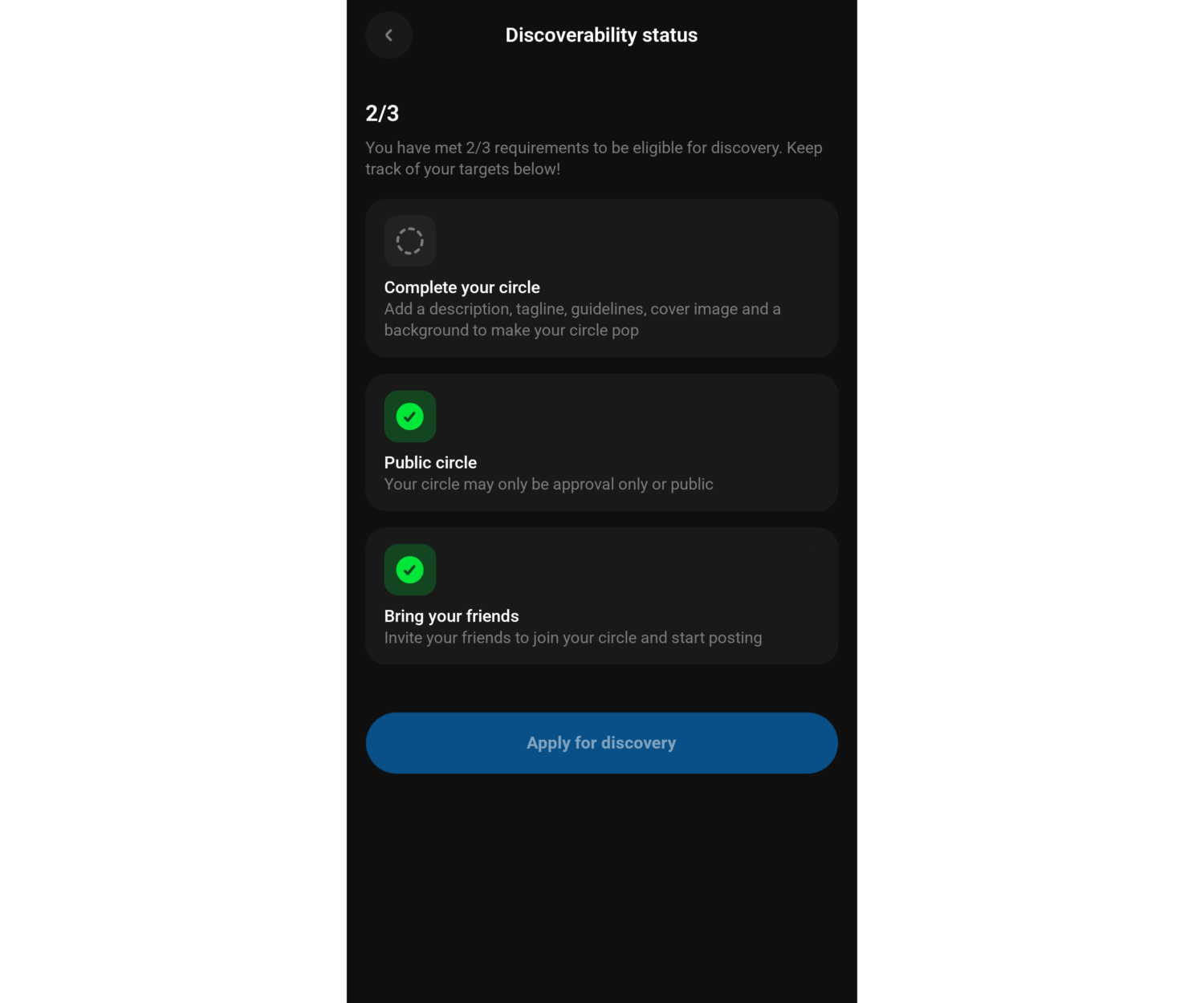
From there, proceed to the “Status” section. Here, you’ll be able to see which requirements have already been completed and which ones still need to be met for your circle to become eligible for Discovery.
***
There are (3) three requirements in total:
Complete your circle.
Add a description, tagline, guidelines, cover image and a background to make your circle stand out.
Circle status.
Your circle may only be Approval only or Public.
Bring your friends.
Your circle must have at least 15 members to unlock the “Apply for Discovery” button.
Now that we understand what needs to be done, the next question.." Where can you customize your circle?". You may have noticed a “Customize” button in the Admin Panel. This is exactly where we need to go. Let’s take a closer look at the available options!
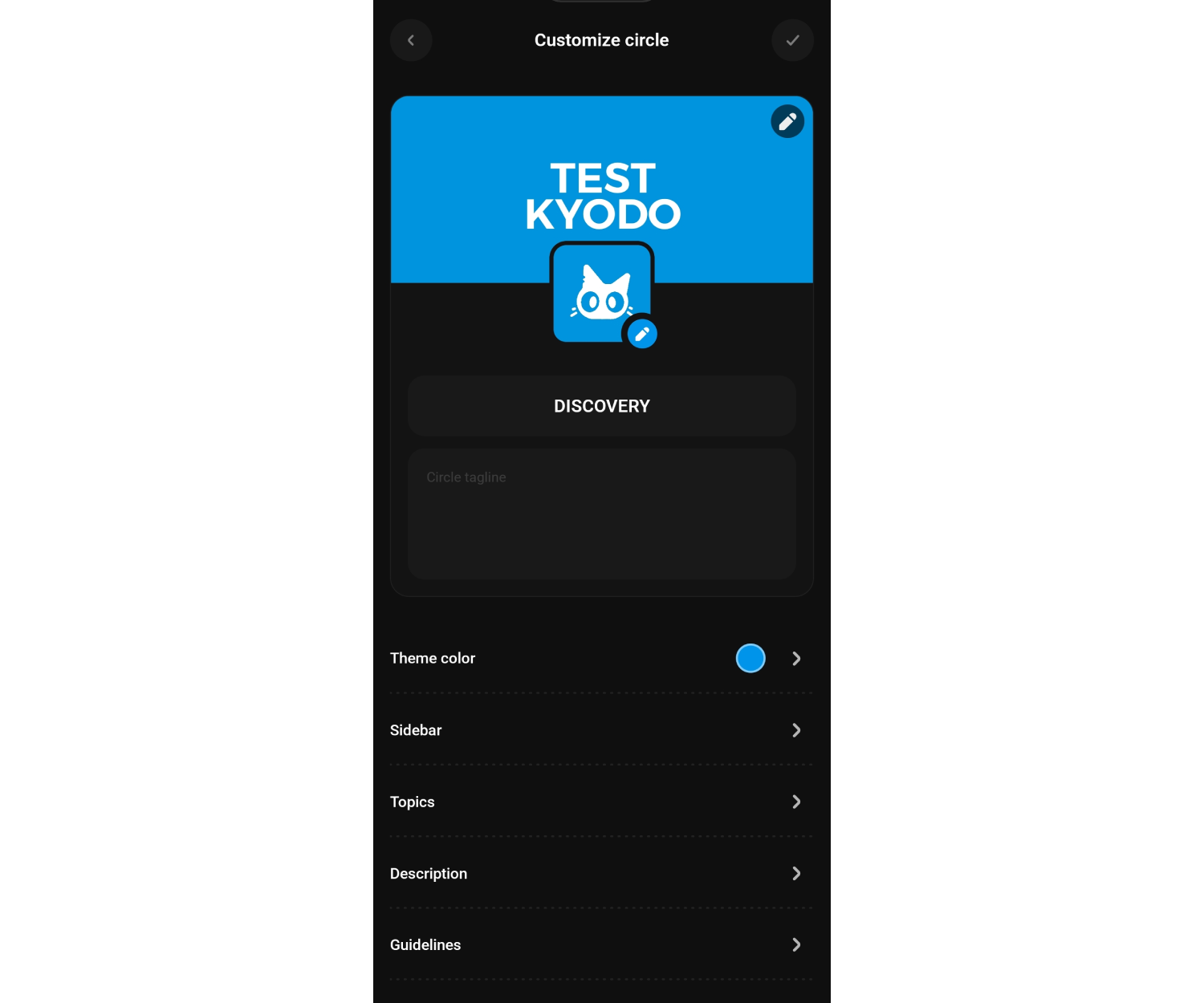
Top Section
Circle icon – A small square logo representing your circle. Next to it, you will see a ✏️ icon, which allows you to edit the circle icon.
Banner – the circle’s cover and a small visual presentation. It’s displayed in the circle description and in discovery. The ✏️ icon in the upper-right corner allows you to change the banner.
Circle name – the main name of your circle that other users will see.
Tagline – a short description of your circle.
Bottom Section
Theme color – allows you to set the primary color of your circle theme.
Sidebar – allows you to add a background in the circle’s sidebar panel.
Topics – a section where you can add topics related to your circle. This greatly helps interested users find your circle.
Description – a full description of your circle where you can explain its purpose, topics, and goals.
Guidelines – the circle rules section where you can clearly describe what members are allowed to do in your circle and what is not allowed.
⚠️ Important: You must complete ALL requirements before the “Apply for Discovery” button becomes available.
Still have questions? Visit the Admin Circle of your segment or contact Support!
Credits to @yugor on Kyodo
Was this article helpful?
That’s Great!
Thank you for your feedback
Sorry! We couldn't be helpful
Thank you for your feedback
Feedback sent
We appreciate your effort and will try to fix the article